Search
The Search modal finds text across every note in the vault. It matches note content line by line, so a query finds text inside notes, not just in their titles.
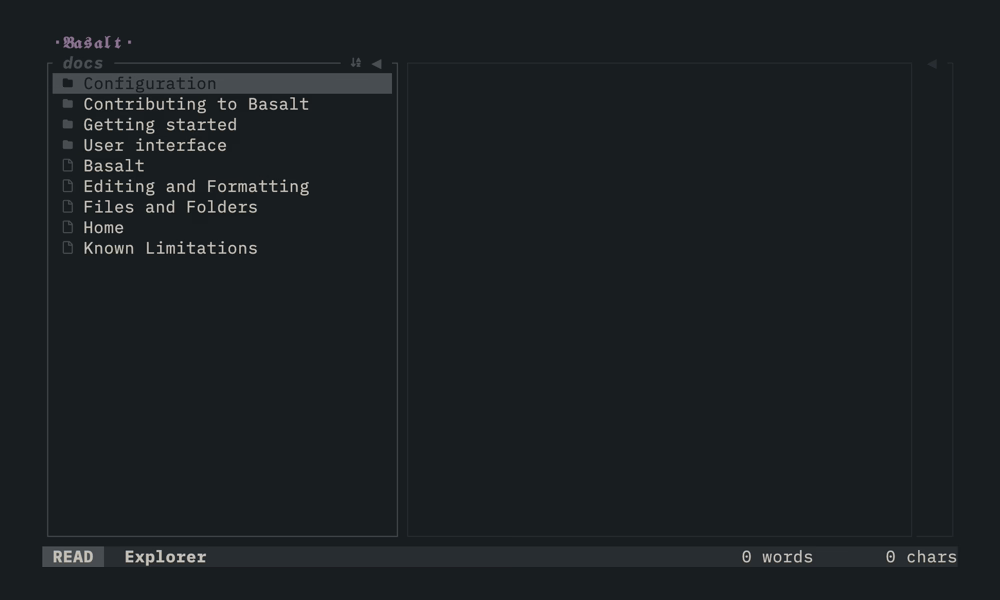
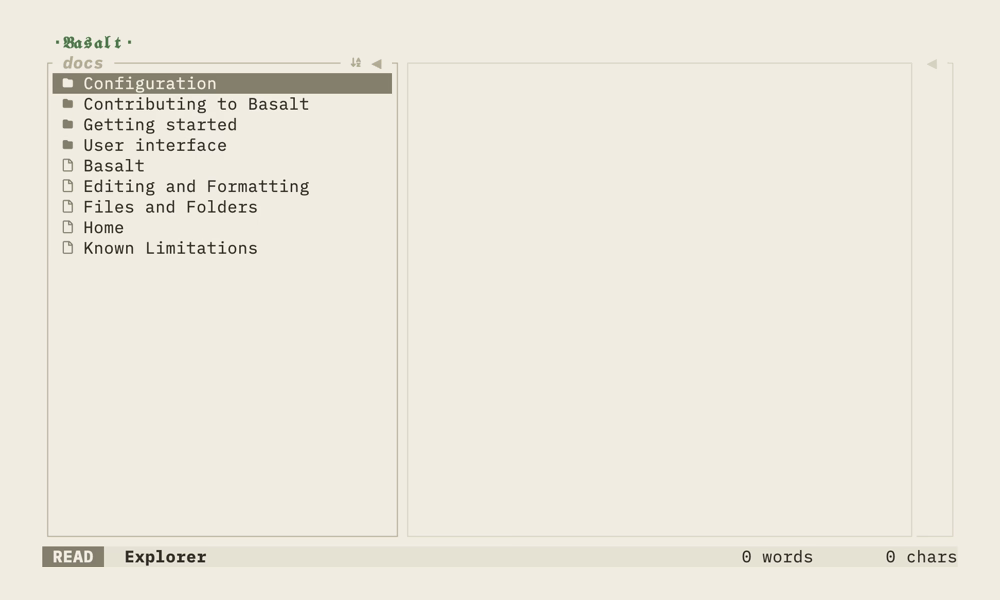
Press Space then s (the leader followed by s) to open it. Type a query to search. The match is fuzzy, so the query characters must appear in order, but they do not need to be next to each other.
Results appear as you type and re-rank on each keystroke. Each result shows the note name and the matched line. The matched characters are highlighted. The best match stays at the top and starts selected.
The index builds in the background. Results stream in while the index builds, so you can search a large vault without waiting for the whole index. The status at the bottom right shows indexing… while the index builds, then the number of shown results and the total.
Use Ctrl+n/Ctrl+p or the arrow keys to move the selection. Press Enter to open the selected note at the matched line and column. Press Esc to close the modal.
The Search modal reads markdown files only. It skips binary attachments, because they never match a text query.
Key mappings#
| Mapping | Description |
|---|---|
Space s | Toggle the search modal |
Ctrl+n / ↓ | Move selection down |
Ctrl+p / ↑ | Move selection up |
Enter | Open the selected note at the match |
Esc | Close the modal |
The query field supports the usual line-edit keys, so you can move and delete by word while you refine the query.
| Mapping | Description |
|---|---|
Ctrl+a / Ctrl+e | Move to line start / end |
Alt+b / Alt+f | Move backward / forward by word |
Ctrl+w | Delete the word before the cursor |
Ctrl+u / Ctrl+k | Delete to line start / end |
Backspace | Delete the character before cursor |